
Swap the image
- In the editor, open the panorama you want to replace.
- On the Panorama tab, open Panorama Details and choose Swap Pano (1).
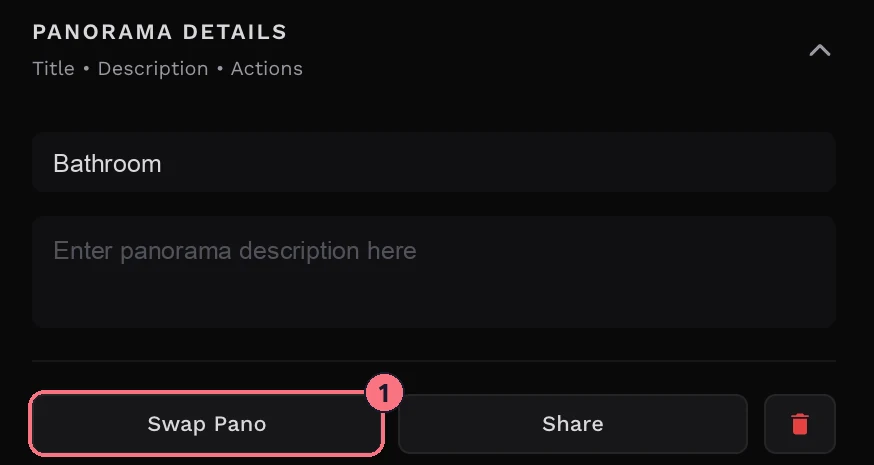
- In the Swap Panorama window, drag the new image onto the box (2), or click the box to choose it.
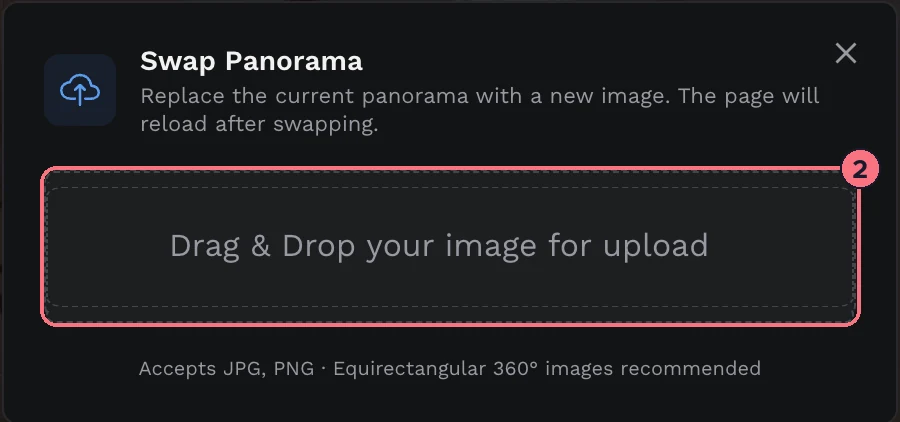
When the upload finishes, the editor reloads with the new image in place.
What image to use
- File typeJPG or PNG.
- ShapeA full 360° equirectangular image, twice as wide as it is tall, like the one you’re replacing.
- SizeUp to your plan’s limit per photo. The upload box tells you if a file is too big.
Keep the hotspots in the right place
Hotspots stay where they were in the panorama, so they only line up if the new image matches the old one: taken from the same spot, with the camera facing the same way. After swapping, look around and check that each hotspot still sits on its door, picture or product. If one has drifted, drag it back into place on the Hotspot tab.
Tips
- Same camera, same height. Retakes from the same tripod position line up best.
- To fix only the tilt of a panorama, rather than replacing it, see horizon correction.
Common questions
Will I lose my hotspots if I replace a panorama?
No. Swap Pano keeps the panorama’s hotspots and its place in the tour. The hotspots stay at the same spot in the image, so check they still line up after the swap.
Why are my hotspots in the wrong place after swapping?
The new photo was taken from a different spot, or with the camera facing a different way. Drag each hotspot back into place on the Hotspot tab, or retake the photo from the same tripod position.