
Make the QR code
- Open your tour in the editor and choose the Share tab at the top right.
- Set how the tour should open, as you would for a link: Tour Type, First Pano to start in a particular room, and Custom Domain if you have one (see Share a tour).
- Choose the ⋮ button next to MLS, then QR Code.
- Choose Download QR to save it as an image, ready for your print design.
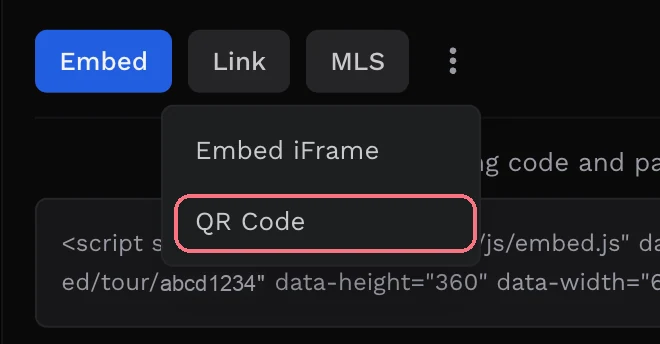
The QR code holds the tour’s link, so it changes when you change those choices. Download it again after you change them.
Tips
- Make sure people can open the tour. It needs to be Unlisted or Public. Anyone who scans the code of a Private tour sees “The tour you’re trying to view is private.” (See Who can see your tour.)
- Test it before you print: scan it with your own phone while you’re signed out.
- Print it big enough to scan from where people will stand, and leave a plain margin around it.
- Visitors can get a QR code too: the Share button in the tour’s control bar shows one, with “Or scan this code to open it on a phone.”
Common questions
Can a QR code open the tour in a particular room?
Yes. Pick the panorama under First Pano on the Share tab before you choose QR Code, then download it.
Do I need a new QR code after I edit the tour?
No. The QR code holds the tour’s link, not a copy of the tour, so changes you make in the editor show for anyone who scans it. You only need a new QR code if you change Tour Type, First Pano or Custom Domain.
Why does my QR code say the tour is private?
The tour is set to Private. Make it Unlisted or Public so anyone who scans the code can open it; see Who can see your tour.