
Clone a tour
- On the Tours page of your dashboard, open the menu (⋮) on the tour’s card.
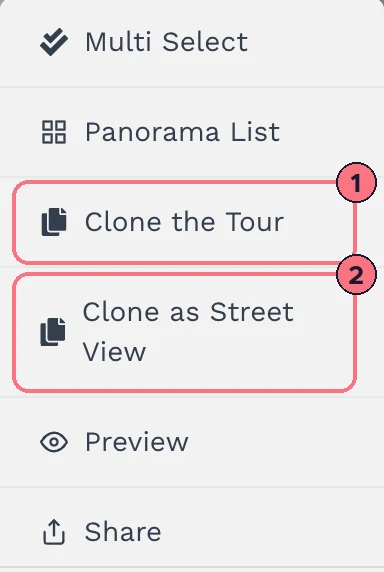
- Choose Clone the Tour (1).
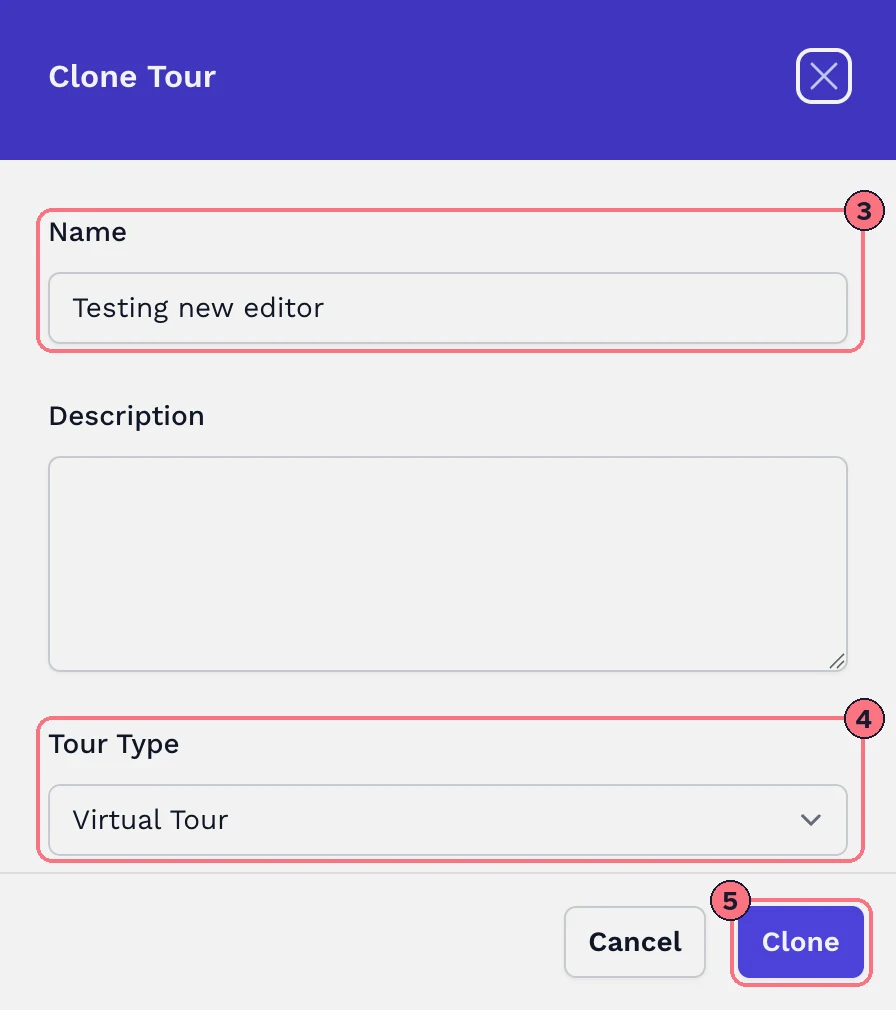
- In the Clone Tour panel, give the copy a Name (3). It starts with the original’s name, so change it to tell the two apart. Add a Description if you like.
- Leave Tour Type (4) as Virtual Tour.
- Choose Clone (5). The copy appears first in your Tours list.
A clone is a new tour in your account. Every paid plan includes unlimited tours. The free trial includes one tour.
Clone as Street View
To publish a tour’s panoramas to Google Street View, make a Street View copy of it: choose Clone as Street View (2) in the tour’s menu, or set Tour Type to Google Street View in the Clone Tour panel. After cloning, the copy opens on the Street View page, ready to publish.
Street View tours are included in some plans. If yours doesn’t include them, Clone as Street View offers an upgrade instead.
Tips
- Reusing a set-up for other tours? To reuse just a menu, control bar or welcome screen in other tours, save it as a global block instead of cloning the whole tour.
- Check the copy’s privacy before you share it.
Common questions
Does cloning a tour change the original?
No. The clone is a separate copy, so you can change it without touching the original tour.
Does a cloned tour count towards my plan’s tours?
A clone is a new tour, and every paid plan includes unlimited tours, so there’s no limit to count against. The free trial includes one tour.
How do I put a virtual tour on Google Street View?
Choose Clone as Street View in the tour’s menu, then publish the copy from the Street View page. See Publish to Google Street View. Street View is included in some plans; on the others, the option offers an upgrade.